
Thinking about posting a video to LinkedIn? The best way to do it is by uploading it natively—straight from your desktop or the mobile app. This little trick makes your video autoplay in the feed, which is a massive advantage for grabbing attention compared to just sharing a link from somewhere else.
Why Video is Your Strongest Asset on LinkedIn

Before we get into the "how-to," let's talk about why video is such a powerhouse on a professional network like LinkedIn. Unlike a simple text post or a static image, video forges a much more personal and dynamic connection with your audience. It’s the closest you can get to a face-to-face chat, letting you build trust and showcase your expertise in a way words just can't match.
In a crowded feed, video is a certified scroll-stopper. That flash of movement and sound (even on mute) immediately pulls the eye. This unique power to capture attention translates directly into better post performance and way more engagement.
The Power of Visual Storytelling
Video gives you a stage to share compelling stories. Think about it: a client success story, a behind-the-scenes peek at your company, or a quick-fire industry tip. This format is brilliant at conveying emotion and personality, making your professional brand more human, relatable, and ultimately, more memorable.
Here's a stat for you: video posts on LinkedIn can rake in up to 3 times more engagement than text or image posts. Why? Professionals retain 95% of a message when they watch it in a video, compared to just 10% when they read it.
Driving Meaningful Interactions
At the end of the day, the goal is to start conversations, not just rack up likes. A well-made video encourages more thoughtful comments and shares, which is exactly what you need to expand your reach. These interactions are powerful signals to the LinkedIn algorithm, giving your content a serious visibility boost.
If you're curious to learn more about how these metrics work, check out our guide on impressions on LinkedIn.
Getting Your LinkedIn Video Specs Right
There's nothing more frustrating than having a great video ready to go, only to be blocked by an upload error. I’ve been there. Before you even think about posting, you need to make sure your video file meets LinkedIn's technical rules.
Think of these specs not as annoying limitations, but as the foundation for getting your video seen.
When you upload a video natively—meaning directly to LinkedIn instead of just dropping in a YouTube link—the algorithm gives you a serious advantage. Native videos autoplay right in the feed, grabbing attention instantly. But to get that prime real estate, your file has to play by the rules. This all comes down to the details: file size, format, and dimensions.
Core Video Requirements
LinkedIn has a few hard-and-fast rules for video. Getting these right from the start saves you from the headache of re-exporting your file and ensures your content looks sharp on every device.
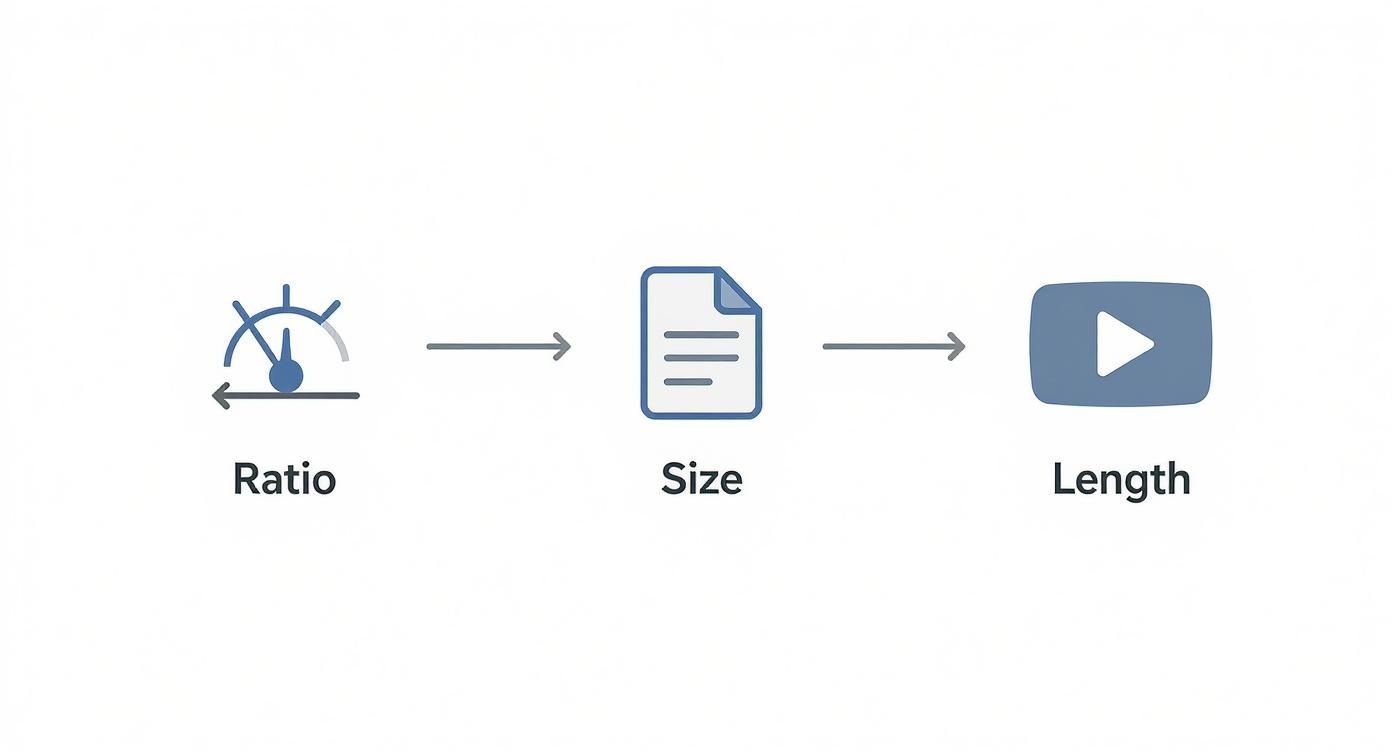
- File Size: Your video needs to be under 5GB. This is pretty generous, but I always recommend keeping files as small as possible without sacrificing quality. Smaller files mean faster load times, especially for people on slower connections.
- Video Length: The sweet spot is between 3 seconds and 10 minutes. Anything shorter won't register, and anything longer won't upload.
- File Format: Stick with MP4. While other formats are technically supported, MP4 is the universal standard for a reason. It just works.
- Aspect Ratio: This is a big one. LinkedIn is flexible, supporting everything from a wide 16:9 (your standard horizontal video) to a tall 9:16 (like an Instagram Story). A square 1:1 video is often the safest bet for mobile.
If you're not a video editing pro, don't worry. There are plenty of easy-to-use video resizing tools out there that can quickly get your content perfectly formatted for LinkedIn without you having to open up complex software.
LinkedIn Video Requirements at a Glance
For those who just want the facts, here’s a quick-reference table with everything you need to know. Keep this handy to avoid any upload surprises.
| Specification | Requirement |
|---|---|
| Minimum Length | 3 seconds |
| Maximum Length | 10 minutes |
| Maximum File Size | 5GB |
| Recommended Format | MP4 |
| Aspect Ratio | 1:2.4 to 2.4:1 (e.g., 9:16, 1:1, 16:9) |
| Frame Rate | 10 to 60 frames per second (fps) |
| Bitrate | 192 kbps to 30 Mbps |
Getting these technical specs right is your first win. It guarantees your video shows up looking professional, setting the stage for your message to shine.
Here's a pro-tip from my own experience: always optimize for mobile. The vast majority of people are scrolling LinkedIn on their phones. A square (1:1) or vertical (4:5 or 9:16) video takes up more screen space, making it far more eye-catching and harder to scroll past than a traditional horizontal video.
How to Post a Video from Your Desktop
When you’ve got a polished, edited video ready to go, uploading it from your desktop is always the best move. It gives you far more control over the final look, from custom thumbnails to crucial accessibility features, making sure your hard work pays off.
It all starts on your LinkedIn homepage. Just find the “Start a post” box at the top of your feed—this is your command center for getting your content out there.
Once you click it, you’ll see a few icons for different media types. Go ahead and hit the video icon. This will pop open a window so you can browse your computer and grab the video file you want to share.
The screenshot above shows you the final, critical steps right before you hit post. Nailing the thumbnail and captions can make a huge difference in how your video performs.
Crafting Your Post for Maximum Impact
Okay, your video is uploaded. Now for the part that so many people get wrong: the text. Your copy is just as important as the video itself.
Don’t just describe what’s in the video—tell people why they should care. Give them context, hook them in, and ask them a question to get the conversation started. If you mention any people or companies, be sure to tag them using the @ symbol to expand your reach.
Pro Tip: I can't stress this enough: always, always add a custom thumbnail. LinkedIn will just grab a random frame, and it's rarely a good one. A well-designed thumbnail acts like a billboard for your content, practically begging people to click play.
Before you publish, run through this final checklist to give your post the best chance of success.
- Add Relevant Hashtags: Stick to 3-5 hashtags. I usually go with a mix of broad industry terms and more niche topics to attract the right audience.
- Include a Call to Action (CTA): Be direct. Tell your audience what you want them to do next. Ask a question, point them to a link in the comments, or invite them to share their own experiences.
- Set Alt-Text: This is a small step with a big impact. Click the “Edit” option on your video preview and write a quick description. It makes your content accessible to everyone, including those with visual impairments.
Posting a Video from the Mobile App
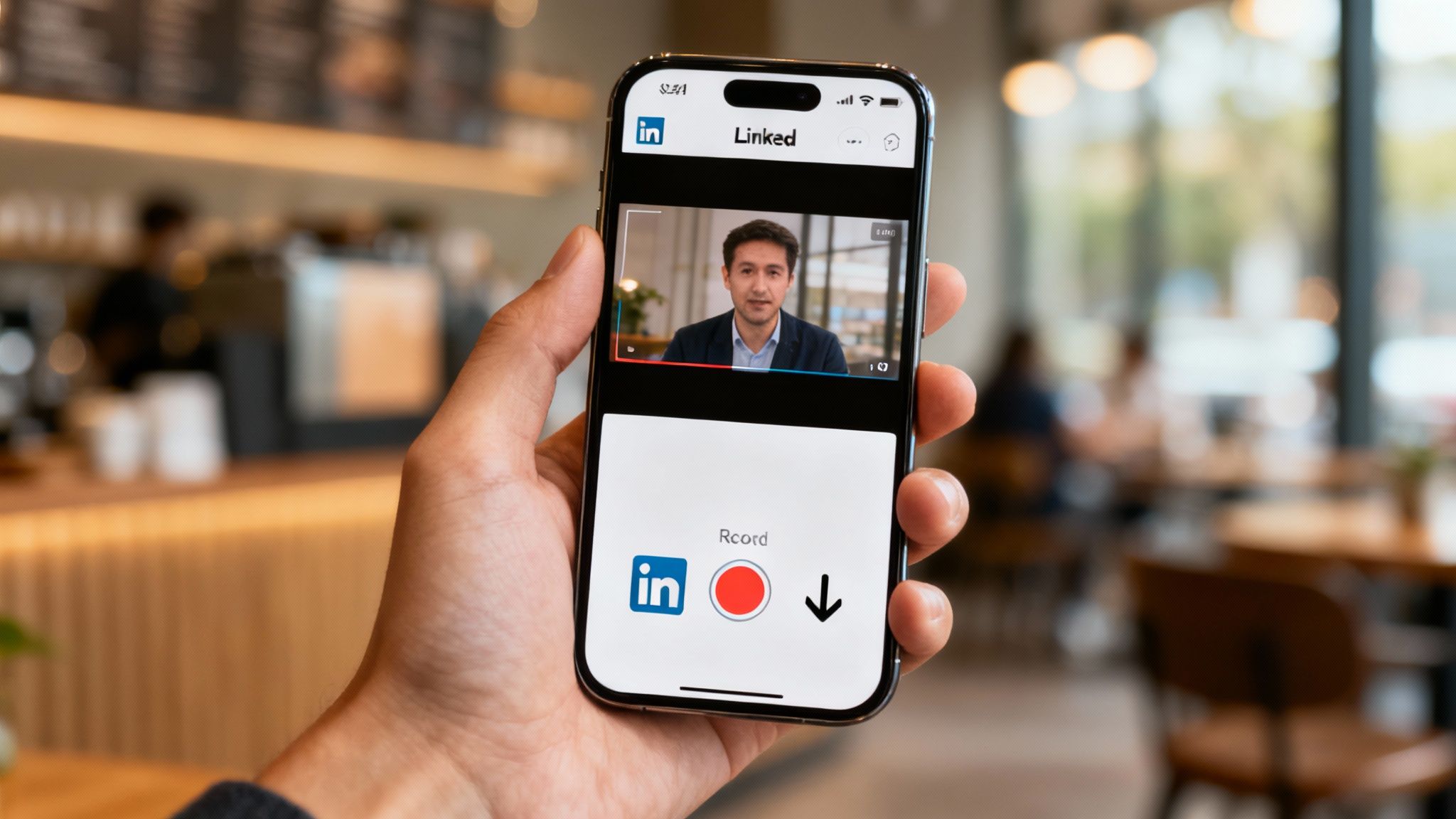
Let's be real—sometimes your best content ideas happen when you're far from your desk. You might be at a conference, walking through the office, or just have a sudden spark of inspiration. For those moments, the LinkedIn mobile app is your best friend for getting authentic, in-the-moment video out to your network.
The mobile workflow is built for speed and simplicity. It lets you grab content straight from your phone’s camera roll or even shoot a video right inside the app, which is a massive time-saver.
To kick things off, just hit the “Post” button in the navigation bar at the bottom of the screen. This opens up the post composer, where you'll start building your update.
Getting Your Video Ready
Once you're in the post composer, look for the media icon (it usually looks like a little picture or video camera). Tapping this will open your phone’s photo gallery, where you can pick the video you want to upload.
You can also record a new video on the spot. I find this is perfect for those timely updates or spontaneous thoughts that feel more genuine and personal.
My Advice: I lean on mobile uploads for building a stronger, more personal brand. They're perfect for quick event recaps, team shout-outs, or raw, unedited takes. This kind of content feels more relatable and less "corporate" than a polished studio video.
After you've picked or recorded your video, LinkedIn will take you to a basic editing screen. The mobile app has a few lightweight features you can use for some quick touch-ups before you post.
- Text Overlays: You can add simple text right onto your video. This is great for calling out a key takeaway or adding a bit of context without relying solely on the caption.
- Filters: The app has a handful of filters if you want to tweak the look and feel of your footage.
- Trimming Clips: Is your intro or outro a little long? You can easily trim the start or end of your clip right in the app to get straight to the point.
Once you’re happy with your quick edits, tap “Next.” Now you can add that all-important caption, throw in some relevant hashtags, and tag anyone you mentioned before hitting publish and sending it out to your network.
Proven Strategies to Boost Video Engagement
Getting your video uploaded to LinkedIn is just the first step. The real work begins when you hit "post." The big question is, how do you make sure your video actually stops the scroll, starts a conversation, and gets shared?
If you want to truly master how you post video to LinkedIn, you need a game plan that goes way beyond just the upload button.
It all starts with a killer hook. You have maybe three seconds—if you're lucky—to grab someone's attention. Ditch the long, branded intro and lead with your most surprising stat, a thought-provoking question, or the most valuable takeaway. Get straight to the good stuff.
Create Content For Silent Viewing
Think about how people browse LinkedIn. They’re in an open office, on their commute, or sneaking a peek during a meeting. A huge chunk of your audience will have their sound off. If your message depends on audio, you're missing out.
This is why captions are non-negotiable. It’s not just an accessibility feature; it's a core engagement tactic.
Adding captions ensures your message lands, even when the viewer is in a silent environment. You can upload a separate SRT file or just burn them right into your video during editing. Either way, you'll see a big difference in how long people stick around.
The power of video on this platform is undeniable. LinkedIn users are 20 times more likely to reshare a video post compared to any other type of content. With 97% of B2B marketers actively using the platform, video has become an essential tool for generating high-quality leads. Learn more about LinkedIn marketing insights on brentonway.com.
Spark Conversations With Your Copy
The text you write for your post is your video’s best friend. Don't just rehash what's in the video. Give it some context, share a personal story related to the topic, or pose a question that practically begs your network to chime in.
Your goal is to turn passive scrollers into active participants.
- Tag relevant people and companies. A simple @-mention can pull others into the conversation and give your video’s reach a serious boost.
- End with a clear call to action (CTA). Don't leave them hanging. Tell them what you want them to do next. It can be as simple as "What's one tip you would add?" or "Share your thoughts in the comments."
- Jump on comments—fast. When you engage with your audience, you signal to the LinkedIn algorithm that your post is sparking valuable conversation, which often leads to more visibility.
And while you're brainstorming, don't be afraid to look for inspiration beyond video. Exploring more social media content ideas can spark fresh angles for your next post.
Finally, don't forget that timing is everything. Dropping your video when your audience is most active can make or break its initial momentum. For a full breakdown, check out our guide on the best time to post on LinkedIn and start fine-tuning your schedule.
A Few Common Questions About LinkedIn Video
Even with the best strategy, you're going to have questions pop up when you start posting videos on LinkedIn. I know I did. Getting a handle on these common sticking points can save you a ton of time and keep you from second-guessing yourself.
Let's dive into some of the questions I hear all the time.
How Long Should My Videos Be?
This is probably the biggest one. LinkedIn lets you upload videos up to 10 minutes long, but don't take that as a target. Longer is rarely better.
For most topics, you want to aim for under 90 seconds. This is the sweet spot for grabbing attention and delivering a punchy, memorable message.
But—and this is a big but—LinkedIn is a platform for genuine expertise. If you have deep, valuable insights that your audience truly needs, don't be afraid to go longer. A well-structured 2-3 minute video that teaches something valuable will perform much better than a rushed, superficial clip.
Can You Edit a Video After Posting?
Here’s a critical detail you need to know upfront: you cannot edit the video file itself once your post is live. If you spot a mistake in the recording, your only move is to delete the entire post and start over with the corrected version.
You can, however, edit the text part of your post—the description, hashtags, and any @-mentions. So, if it's just a typo in the caption, that's an easy fix. No need to re-upload.
The most important takeaway is to always add subtitles. A massive number of professionals watch videos with the sound off, especially in an office or on a commute. Captions ensure your message lands, dramatically increasing watch time and overall engagement.
How Often Should I Post Videos?
Figuring out the right posting frequency is another puzzle. You want to stay top-of-mind without flooding people's feeds. For a deeper look at finding that balance, you can learn more about how often you should post on LinkedIn.
Ready to turn your ideas into compelling LinkedIn videos without the hassle? PostFlow uses your own voice recordings to generate post ideas, drafts, and captions, all guided by your personal AI strategist, Emilia. Stop missing opportunities and start posting consistently with PostFlow.